Fixing “Invalid Signature” Errors When Uploading an iOS App to App Store Connect
Fix “Invalid Signature” errors uploading iOS apps to App Store Connect — code signing pitfalls, framework issues, and the real root cause.
When submitting an iOS app to App Store Connect, one of the most frustrating errors you can encounter is a wall of “Invalid Signature” validation failures.
While uploading an app, I ran into errors like this:
Validation failed
Invalid Signature. Code failed to satisfy specified code requirement(s).
The file at path “YourApp.app/Frameworks/AmplitudeCore.framework/AmplitudeCore” is not properly signed.
The same error repeated for multiple frameworks:
- AmplitudeCore.framework
- OneSignalCore.framework
- OneSignalExtension.framework
- OneSignalFramework.framework
- OneSignalLiveActivities.framework
- OneSignalNotifications.framework
- OneSignalOSCore.framework
- OneSignalOutcomes.framework
- OneSignalUser.framework
- Sentry.framework
- YourApp.app/YourApp
There was also an additional error:
Upload Symbols Failed
The archive did not include a dSYM for the Sentry.framework
At first glance it looked like every third-party SDK was broken, but the issue was actually related to code signing configuration.
Why This Happens
App Store uploads require your app binary and all embedded frameworks to be signed with a distribution certificate.
If the app is built with a development certificate, App Store Connect will reject the archive and report that the binaries are not properly signed.
Since frameworks are embedded inside the app bundle, they inherit the signing context of the app. If the main app is incorrectly signed, every embedded framework will fail validation, which makes the problem appear much larger than it really is.
Common Fixes to Try First
Before finding the real cause, there are several common fixes worth checking.
1. Make Sure You Are Archiving with the Release Configuration
Uploads must be built using a Release configuration, not Debug or Simulator builds.
Check in Xcode:
Product → Scheme → Edit Scheme → Archive
Build Configuration: Release
Then archive the project again.
2. Verify Signing Settings at the Target Level
In Xcode:
Targets → YourApp → Signing & Capabilities
Make sure:
- The correct Team is selected
- Automatically manage signing is enabled (unless manually configured)
- The Bundle Identifier matches your App ID
Target-level signing settings override project-level settings, so it’s important to verify them here.
3. Ensure Frameworks Are Embedded and Signed
For dynamic frameworks, check:
Target → General → Frameworks, Libraries, and Embedded Content
Frameworks should typically be set to:
Embed & Sign
If frameworks are only embedded but not signed, App Store validation can fail.
4. Clean Build Artifacts
Sometimes stale build artifacts cause signing problems.
Try the following:
Product → Clean Build Folder
Then delete the build directory or DerivedData and rebuild the project.
5. Check for Scripts That Modify Frameworks
If your project contains Run Script build phases that modify frameworks or run custom codesign commands, they may break the signature after Xcode signs the binaries.
Remove or review scripts that:
- Re-sign frameworks manually
- Modify framework contents
- Strip files after signing
The Actual Root Cause
After checking all of the above, the real issue turned out to be much simpler.
The Apple Developer account did not have an iOS Distribution certificate installed.
Because of this, Xcode signed the app with a development certificate, which allowed the app to run locally but caused App Store Connect validation to fail.
The Final Fix
The solution was simply to create and install the correct distribution certificate.
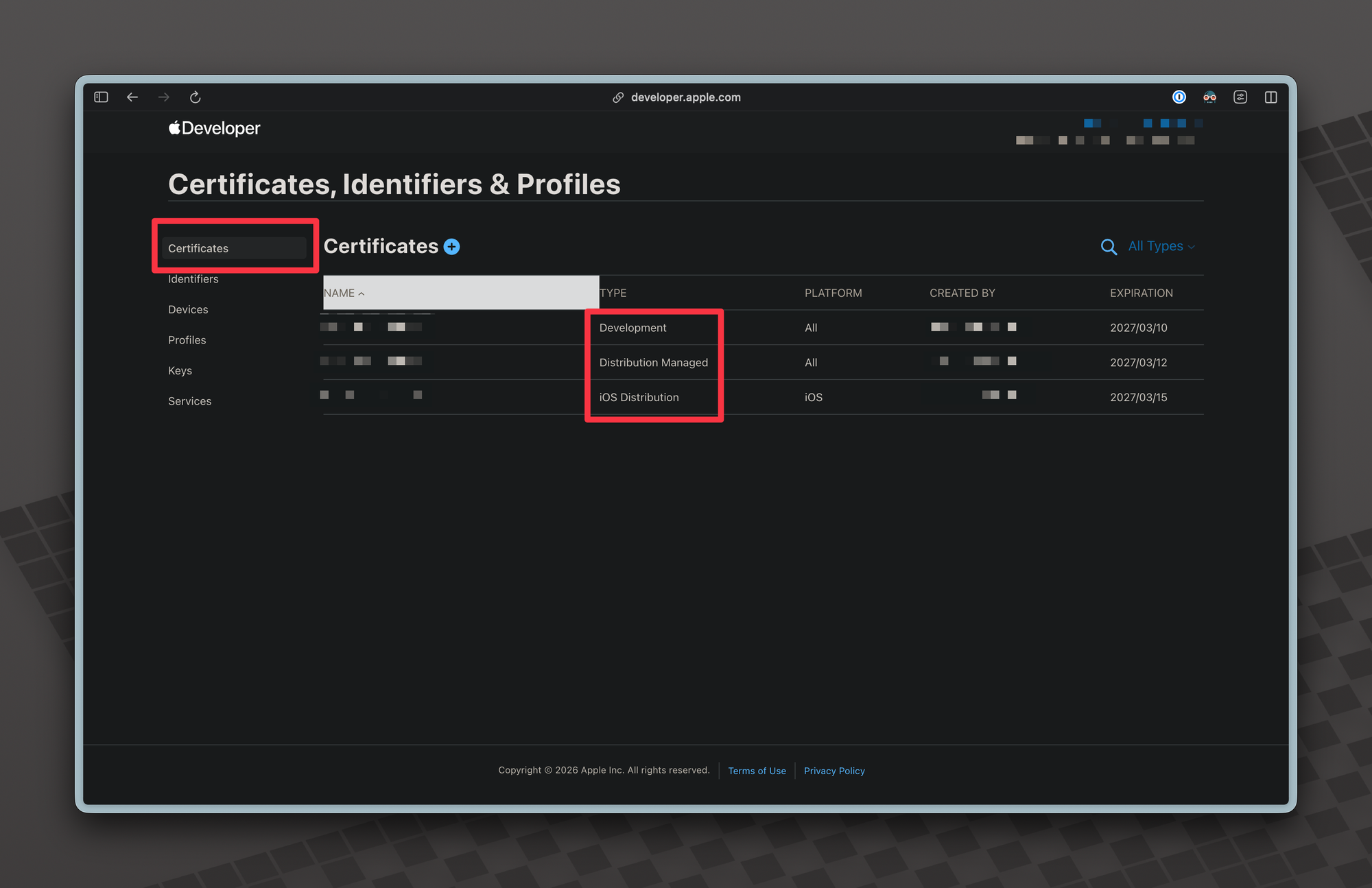
1. Create an iOS Distribution Certificate
Go to:
Apple Developer Portal
Certificates, Identifiers & Profiles
Certificates → +
Create:
iOS Distribution (App Store and Ad Hoc)
Upload your CSR file, download the certificate, and install it in Keychain Access.
2. Update Signing in Xcode
In Xcode:
Target → Signing & Capabilities
Make sure:
- Team is correct
- Signing Certificate is Apple Distribution
- Automatically manage signing is enabled
3. Rebuild and Archive
Clean and archive again:
Product → Clean Build Folder
Product → Archive
Upload the archive through Xcode Organizer.
Result
After installing the iOS Distribution certificate and rebuilding the archive:
- All Invalid Signature errors disappeared
- Frameworks (OneSignal, Amplitude, Sentry) validated correctly
- The app uploaded successfully to App Store Connect
Key Takeaway
If you see a large number of Invalid Signature errors across multiple frameworks, the issue is usually not the frameworks themselves.
Start by checking your code signing configuration, especially whether your project is signed with the correct certificate.
Uploading to the App Store requires an iOS Distribution / Apple Distribution certificate.
Related writing
- 2025·07·01Solving the “Distribution Certificate with Fingerprint Hasn’t Been Imported Successfully” Error in Expo iOS Local Builds2 min
- 2026·06·25How to Measure Cobb Angle on a Spine X-Ray: A Step-by-Step Guide4 min
- 2025·08·05How to Send a Fax From Your Mobile Phone (and Finally Retire the Office Machine)5 min